In 2026, if you don’t Set Up Google Analytics Account to your website, you’re running your website completely blind.
Most website owners don’t know who is visiting their site, where traffic comes from, or whether their SEO and ads are actually working. On top of that, Google Analytics setup looks technical and confusing, especially after Universal Analytics stopped in 2023.
Google Analytics 4 (GA4) is a free tool that shows website traffic, user behavior, and marketing performance across devices, and you can set it up in under 10 minutes without coding, even on WordPress. Once connected, you’ll clearly see users, cities, traffic sources, and what drives real results.
Before we dive into the exact step-by-step process of how to connect Google Analytics to your website easily, let’s quickly understand why GA4 is now mandatory for every website owner and digital marketer.
If you don’t want to set up Google Analytics 4 (GA4) yourself, contact us. We will set it up for you quickly and safely.
Contact Nahid Hasan Mim
What Is Google Analytics 4 (GA4)? Beginner Friendly Explanation

Google Analytics 4, also called GA4, is a free website tracking tool from Google that helps you understand how people use your website or app.
GA4 shows who visits your website, where they come from, what device they use, which pages they view, and what actions they take.
These actions include page views, button clicks, scrolls, form submissions, and purchases. GA4 tracks all of this using an event-based tracking system, not the old session-based system.
This is important because Universal Analytics stopped working in 2023, and GA4 is now the only official version of Google Analytics. Old guides no longer work, which is why many beginners feel confused when they open the GA4 dashboard.
In GA4, everything is based on events instead of sessions.
An event means a user action like:
- Visiting a page
- Clicking a link
- Scrolling a page
- Submitting a form
- Completing a purchase
Inside the GA4 dashboard, you can see:
- Total users and new users
- Cities and countries
- Devices like mobile or desktop
- Traffic sources such as organic search, direct, referral, and ads
- Real-time reports showing live visitors
GA4 makes it easier to measure SEO performance, ad results, and sales because it focuses on what users actually do, not just how long they stay. This helps website owners and digital marketers make smarter decisions using real data.
In simple words, Google Analytics 4 helps you understand user behavior and improve your website using clear, real-time insights.
What You Need Before Setting Up Google Analytics (Requirements)
Before you set up Google Analytics, you need to know one important thing. You do not need a developer. You do not need coding skills.
To connect Google Analytics to your website, you need only two basic things.
First, you need a Google Account, also called a Gmail ID. This account is used to create and manage your GA4 dashboard.
Second, you need access to your website.
This means you can log in to:
- Your website admin panel
- Your WordPress dashboard
- Or any platform where you can add a plugin or insert code
That is all.
Many beginners think Google Analytics setup is technical and risky. They worry they might break their website or need a developer. This fear mostly comes from outdated Universal Analytics tutorials that no longer apply.
Beginners can set up GA4 by themselves, especially on WordPress. With the right steps, you can install Google Analytics without writing a single line of code.
If you have:
- One Gmail account
- Admin access to your website
You are fully ready to start the Google Analytics 4 setup.
Step by Step Guide to Set Up Google Analytics Account to Your Website (12 Easy GA4 Setup Steps for Beginners)
Visit Google GA4 Marketing Platform and Get essential customer insights.
Get a complete understanding of your customers across devices and platforms. Google Analytics gives you the tools, free of charge, to understand the customer journey and improve marketing ROI.
Step 1 Create an Analytics Account to Collect and Organize Data
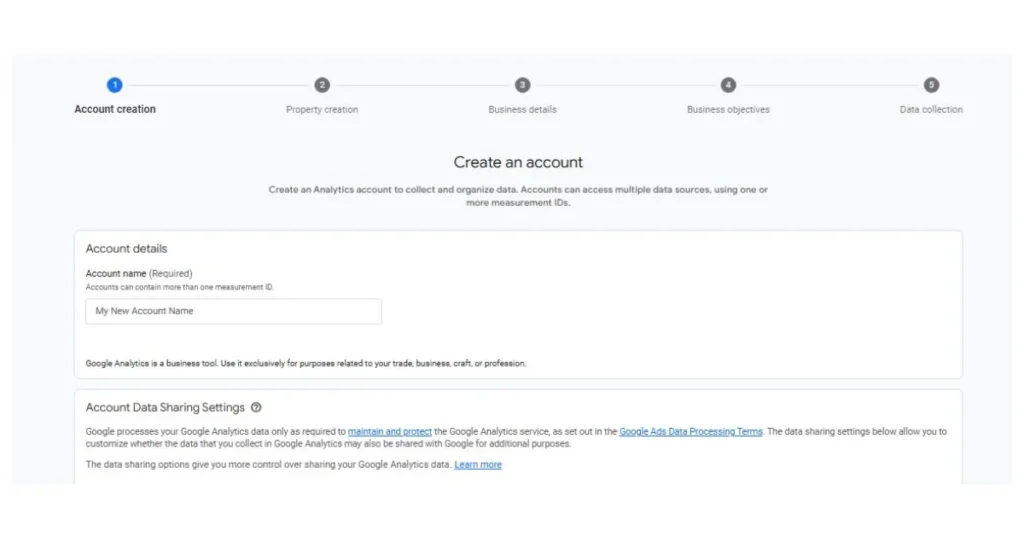
To start Google Analytics 4, first you need to create an Analytics account. This account is used to collect, organize, and manage all your website or app data in one place.
You sign in using your Google Account, then give your account a name. One Analytics account can manage multiple websites and apps, so the best practice is to use your business name or personal brand name.
Many beginners get confused between account and property.
Think of it like this.
The account is the main container. Everything else stays inside it.
Step 2 Create a Google Analytics 4 Property to Measure Data
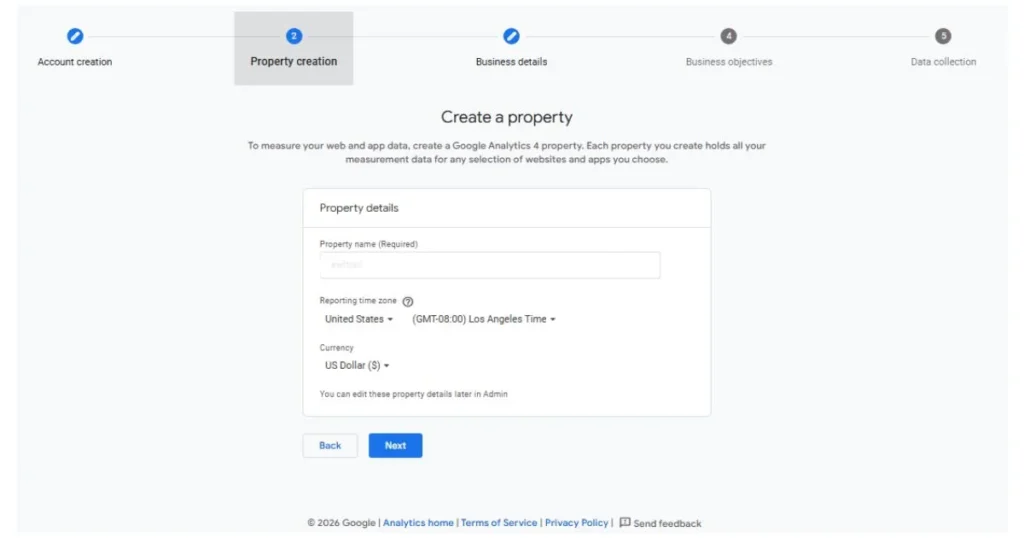
After creating the account, you must create a Google Analytics 4 property, also called a GA4 property. This property is what actually tracks your website or app data.
GA4 replaced Universal Analytics permanently, so every new setup must use GA4. A property represents one website or one app and contains all reports, events, and tracking data.
If you remember one thing, remember this. Property means your website or app, not your Google account.
Step 3 Describe Your Business Industry Size and Location
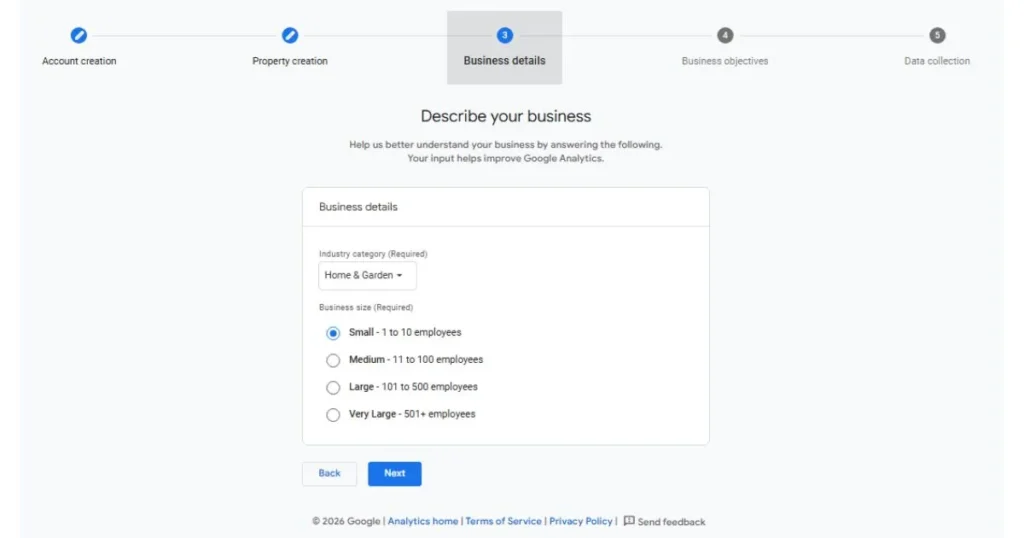
In this step, Google asks you to describe your business. This includes your industry type, business size, and location.
This information helps Google Analytics understand your business and improve report quality. For example, an education website and an ecommerce website do not need the same insights.
If you are unsure, select the closest matching industry and choose your business size as small, medium, or large. Exact numbers are not required.
Step 4 Select the Business Objective Most Relevant to You
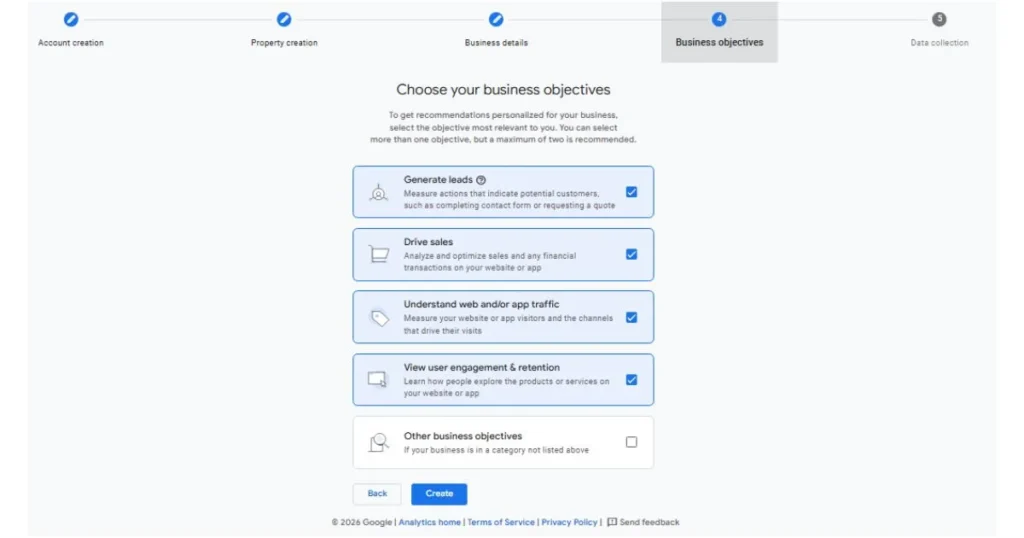
Here you tell GA4 what you want to achieve from your website. These are called business objectives.
Common objectives include:
- Getting more traffic
- Generating leads
- Increasing sales
- Improving user engagement
GA4 uses this selection to personalize dashboards and recommendations. Many beginners fear choosing the wrong option, but there is no risk.
You can select multiple objectives, and the best practice is to choose traffic, leads, and sales together.
Step 5 Start Collecting Data by Choosing a Platform
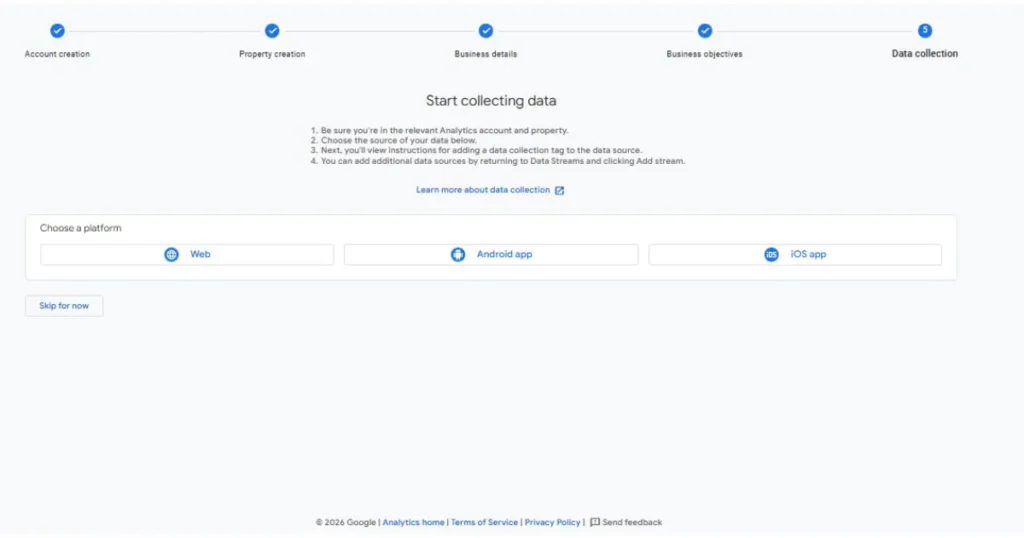
Now Google asks where your data will come from. You must choose between Web and App.
If you have a website, always choose Web. If you have a mobile app, choose App.
Some users get confused here, but the rule is simple. Website equals Web. This step tells GA4 which platform to prepare for data collection.
Step 6 Set Up Your Web Stream Using Your Website URL
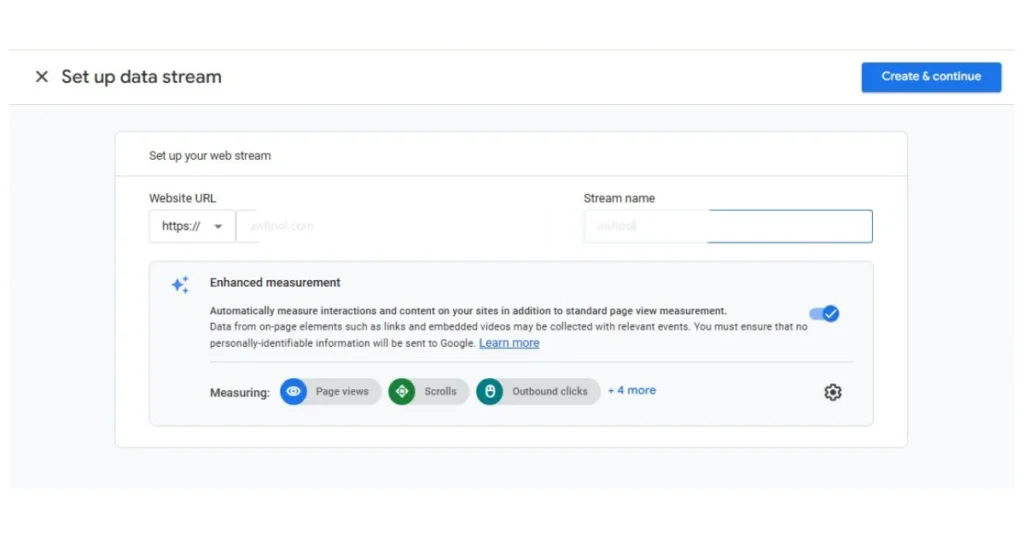
A web stream connects your website to Google Analytics 4. In this step, you add your website URL and create the stream.
Make sure your URL is correct and matches your SSL. If your website uses HTTPS, you must select HTTPS. GA4 then generates a Measurement ID that starts with G-.
This ID is unique to your website and is required to track users, pages, devices, cities, and traffic sources.
Step 7 Choose the Manual Installation Method
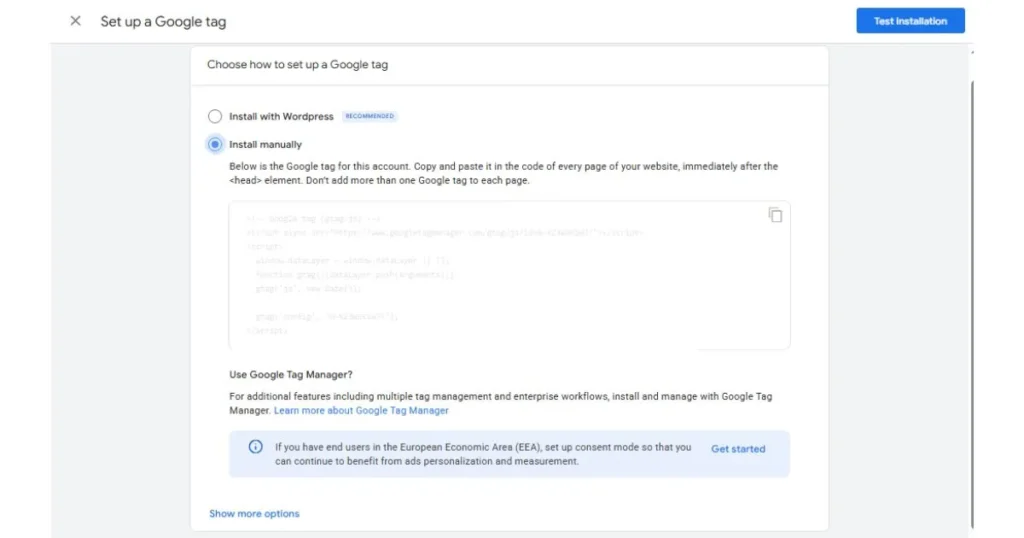
After creating the web stream, GA4 asks how you want to install the tracking code. Here you select manual installation.
Many beginners panic when they see the word manual, but manual does not mean you must code. It only means you will decide how the code is added to your site.
You can still use plugins or tools to install the GA4 tracking code safely.
Step 8 Install the WP Code Plugin on WordPress
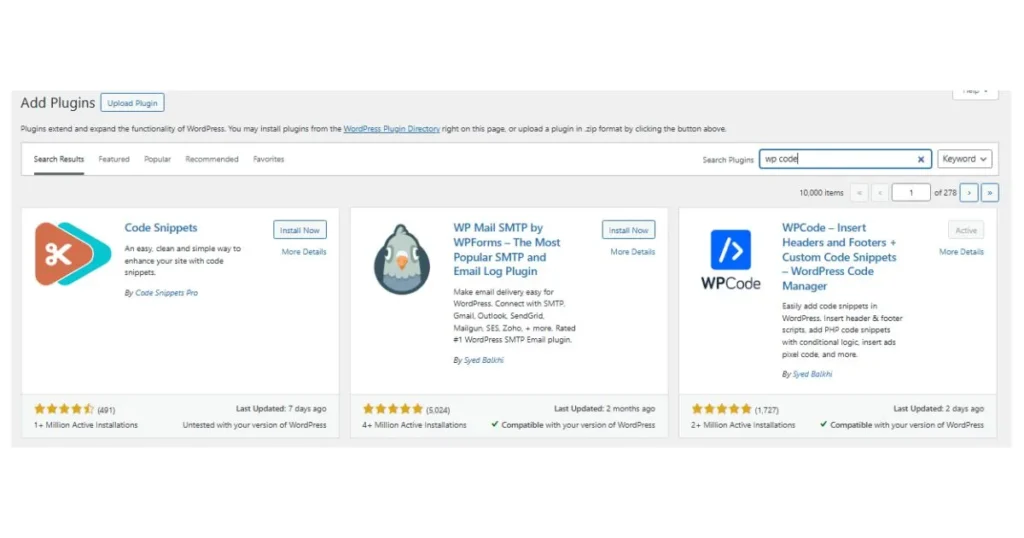
If your website is built on WordPress, the safest option is installing the WP Code plugin.
WP Code allows you to add tracking scripts without touching theme files. It is free, beginner friendly, and widely used for Google Analytics and other third party scripts.
This step removes the fear of breaking your website and avoids the need for a developer.
Step 9 Add the Analytics Code into the Global Header and Footer
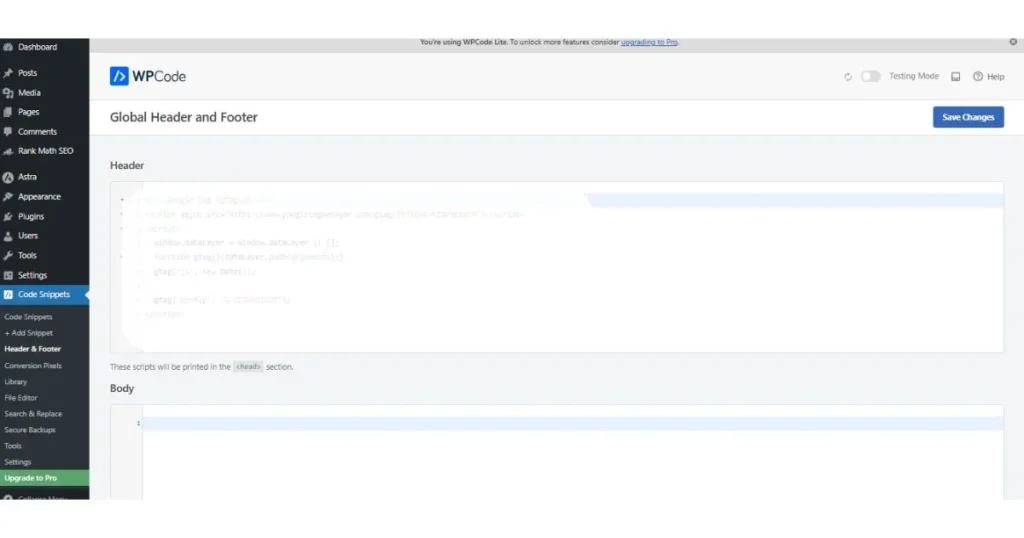
Now you copy the GA4 tracking code and paste it into the global header section using WP Code.
This step officially connects Google Analytics to your website. Without this code, GA4 cannot collect any data.
Paste the code in the header field, save changes, and your website is now linked with Google Analytics 4.
Step 10 Confirm Your Google Tag Is Detected Successfully
After adding the code, Google Analytics checks whether the Google tag is detected on your website.
If everything is correct, you will see a message confirming successful detection. This verification usually works instantly using real time analytics.
This step removes all doubt and confirms your setup is working properly.
Step 11 Data Collection Is Pending Wait Up to 48 Hours
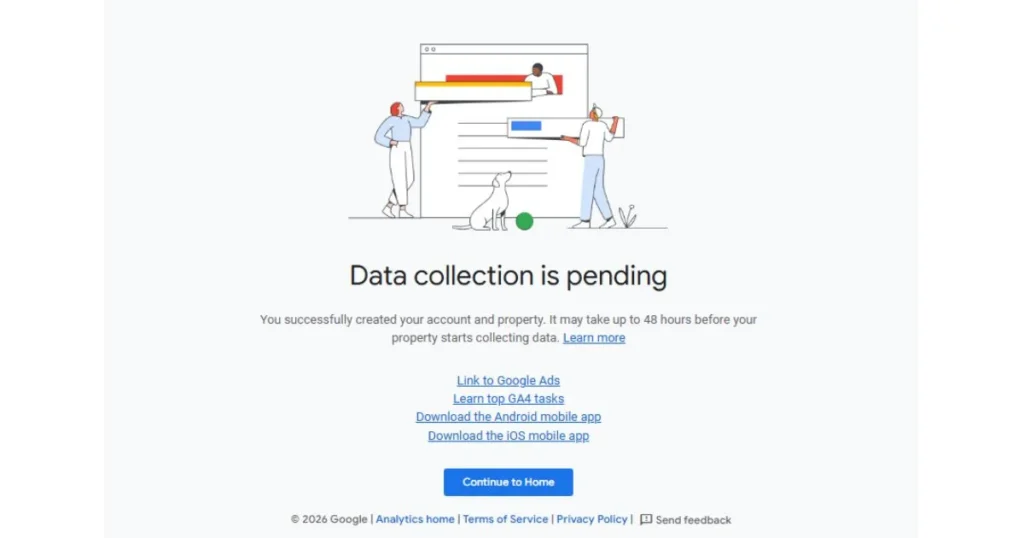
Even after successful detection, GA4 may show a message saying data collection is pending.
This is normal. Google Analytics may take up to 48 hours to fully process and display data in standard reports.
During this time, you can check the Real time report to confirm that visitors are being tracked.
Step 12 Your Google Analytics Account Is Successfully Connected
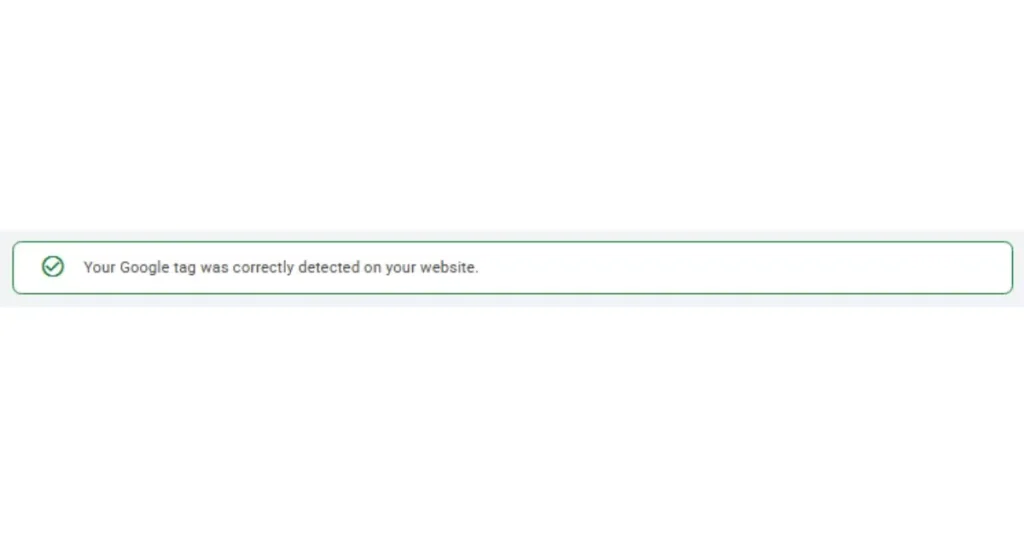
Once data starts flowing, your GA4 setup is complete. Your website tracking is now active and ready to use.
You can see users, traffic sources, devices, pages, and real time activity inside the GA4 dashboard. Tracking begins as soon as visitors arrive on your site.
From this point, you can start analyzing performance and improving SEO, ads, and conversions using real data.
How to Set Up Google Analytics Account to a Non-WordPress or Custom Website
If your website is not built with WordPress (for example: HTML, custom PHP, React, or any static site), you can still connect to Google Analytics 4 easily.
What does this mean? There is no plugin for custom websites. GA4 works by adding a small tracking code directly into your website’s source code.
What you need
- Access to your website files or hosting panel
- Or help from a web developer
How it works (simple explanation)
Google Analytics gives you a GA4 tracking code. You must paste this code inside the <head> section of your HTML pages.
- GA4 works on any website, not only CMS platforms
- Code inside the <head> loads early and tracks users correctly
People think GA4 only works with WordPress or plugins.
- If you manage the site: paste the code inside <head>
- If not: send the GA4 code to your developer and ask them to add it
This method is official, safe, and future-proof for 2026.
Verify Google Analytics Installation and Check Real-Time Data
After adding the GA4 code, the most important step is verification. This confirms that Google Analytics is actually working.
Why verification matters
Without verification, you don’t know if data is being collected or not.
How to check (beginner-friendly)
- Open your GA4 Dashboard
- Go to Reports → Real-time
- Open your website in a new tab
- Check if at least 1 active user appears
Key facts
- Real-time data appears instantly
- Full reports may take up to 48 hours to populate
Common pain points
- “No data is showing”
- “Did I install it correctly?”
Clear solution
- Use the Real-time report first
- Look for status like “Receiving data”
- If real-time works, installation is correct
This step removes all doubt and builds confidence.
What Data You Can See After Connecting Google Analytics
Once GA4 starts collecting data, you don’t just see numbers, you see clear insights about your visitors.
Main data you can see in GA4
- Users: how many people visit your site
- Countries & cities: where visitors come from
- Traffic sources: Organic, Direct, Referral, Social
- Pages: which pages people visit most
Important reports
- Acquisition reports → where traffic comes from
- Engagement reports → what users do on your site
- User demographics → location and device data
Facts that matter
GA4 clearly shows traffic from:
- Google Search (Organic)
- Direct visits
- Referral websites
Top countries often include the US, India, Canada, depending on the audience.
Main pain point
Beginners feel overwhelmed by too much data.
Smart solution for beginners
Focus only on 3 things first:
- Total users
- Traffic source
- Top pages
These alone are enough to improve SEO, content, and conversions.
Benefits of Connecting Google Analytics to Your Website
Connecting GA4 to your website gives clear insights about your visitors and performance.
Key benefits
- Improve ROI: Track which marketing campaigns and ads actually work.
- SEO optimization: Understand which pages attract traffic and where users leave.
- Better marketing decisions: See which channels bring the most visitors and conversions.
Facts
- Almost every professional website uses GA4 for tracking.
- Helps improve ads and SEO performance effectively.
Many website owners don’t know which marketing efforts bring results. GA4 gives actionable insights so you can focus on what works and improve performance.
Common Mistakes to Avoid While Setting Up GA4
Setting up GA4 correctly is important. Beginners often make simple mistakes that prevent data tracking.
Most common mistakes
- Adding wrong tracking code
- Using multiple GA tags on the same site
- Selecting incorrect time zone or currency
Simple solutions
- Use one GA4 property per website
- Make sure time zone and currency match your location
- Always verify the tracking code after installation
These small checks prevent errors and ensure accurate reporting.
FAQs – Connect Google Analytics to Your Website
Q1: Is Google Analytics free?
Yes. Google Analytics 4 is completely free for all websites and apps.
Q2: How long does GA4 take to show data?
Real-time data appears instantly. Full reports may take up to 48 hours to show all metrics.
Q3: Can beginners use GA4?
Absolutely. GA4 setup is simple, especially with WordPress and WP Code plugin. No coding is required.
Q4: Do I need coding knowledge?
No. You can add GA4 tracking code using plugins or simple HTML insertion. Developers help only if you use custom websites.
Connect Google Analytics Today
Connect Google Analytics to your website today and start tracking real visitor data in just 12 simple steps. See who visits, where they come from, and what actions they take to improve your SEO, ads, and conversions.
Watch Video: Set Up Google Analytics Account to Your Website Easily
Learn More: HAMIMIT.COM

Custom Web & Holistic SEO Strategist | Fixing Slow, Low-Converting Websites to Drive High-Ticket Leads & Organic Sales (Without Ads) Managing Director at HAMIM-IT